 COME
COMECOME in a Browser and COME Installed on Android
A COME webpage and an Android installation can both show app-related content. To know which you are using, check how you opened it and where the device lists the application.
Check the route you used
A tab with an address bar is a browser context. Launching an application from Android’s app list is a different route. A shortcut icon can open a website, so the icon alone should not be your only installation check.
Use device information for installation
Read Android’s application information when you need to know whether an app is installed. Browser history and downloaded files describe other stages. A saved APK can exist even if Android never accepted its installation.
Read the menu in its current context
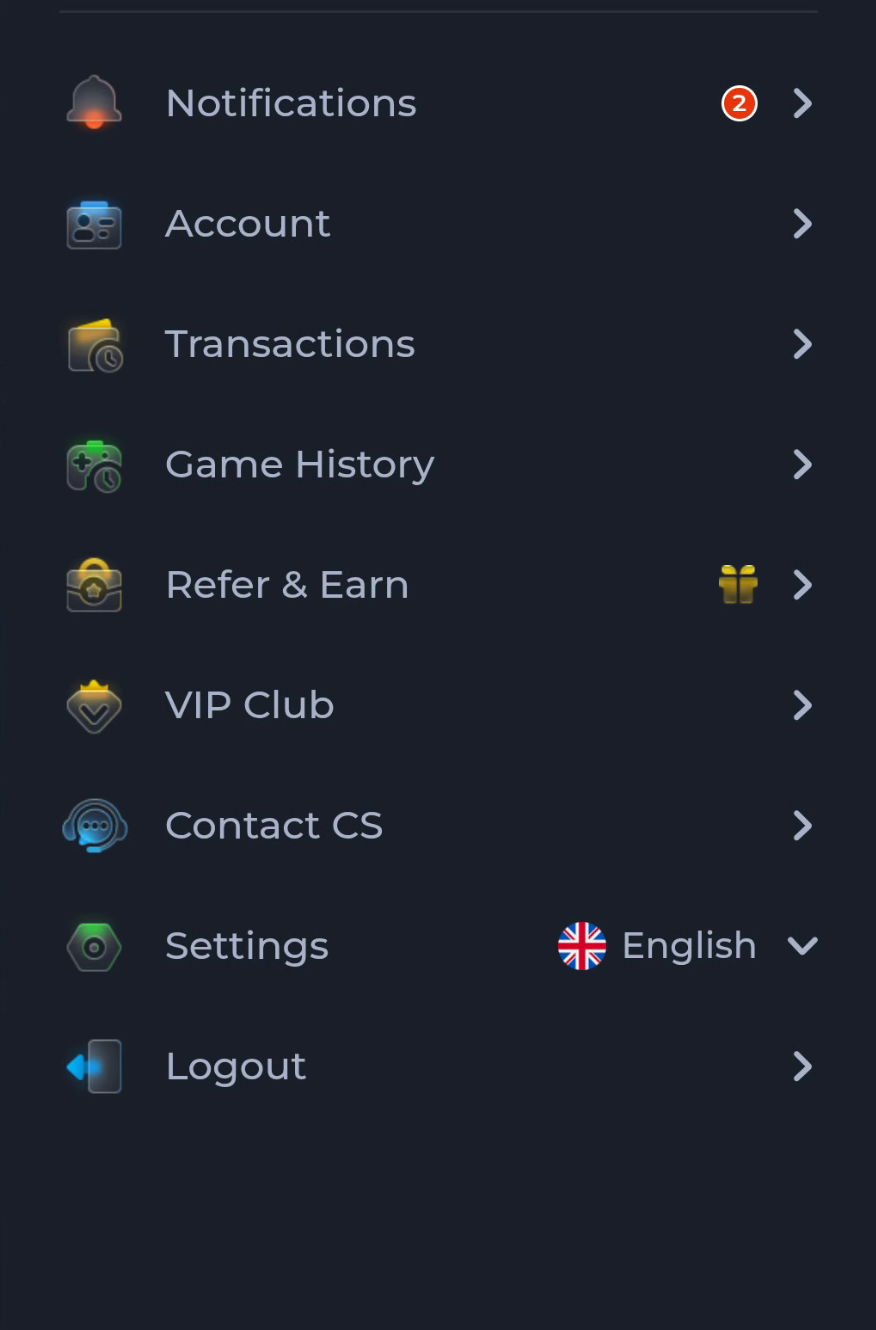
The COME menu groups account activity, help and settings. Use the visible labels for the task in front of you, but do not assume that seeing a similar menu proves the browser and installed app share an identical account session or feature set.
A useful next step
Use Home for the app overview and Download for the actual Android package route. Keep browser state and installed-app state distinct when asking for help.
Related: COME Game History and Transactions Are Separate Menus