 COME
COMEInstalling a COME Update When the App Is Already Present
If COME is already installed, treat the new package as an update check. Keep the working app and your account recovery route while comparing the offered release.
Note the starting state
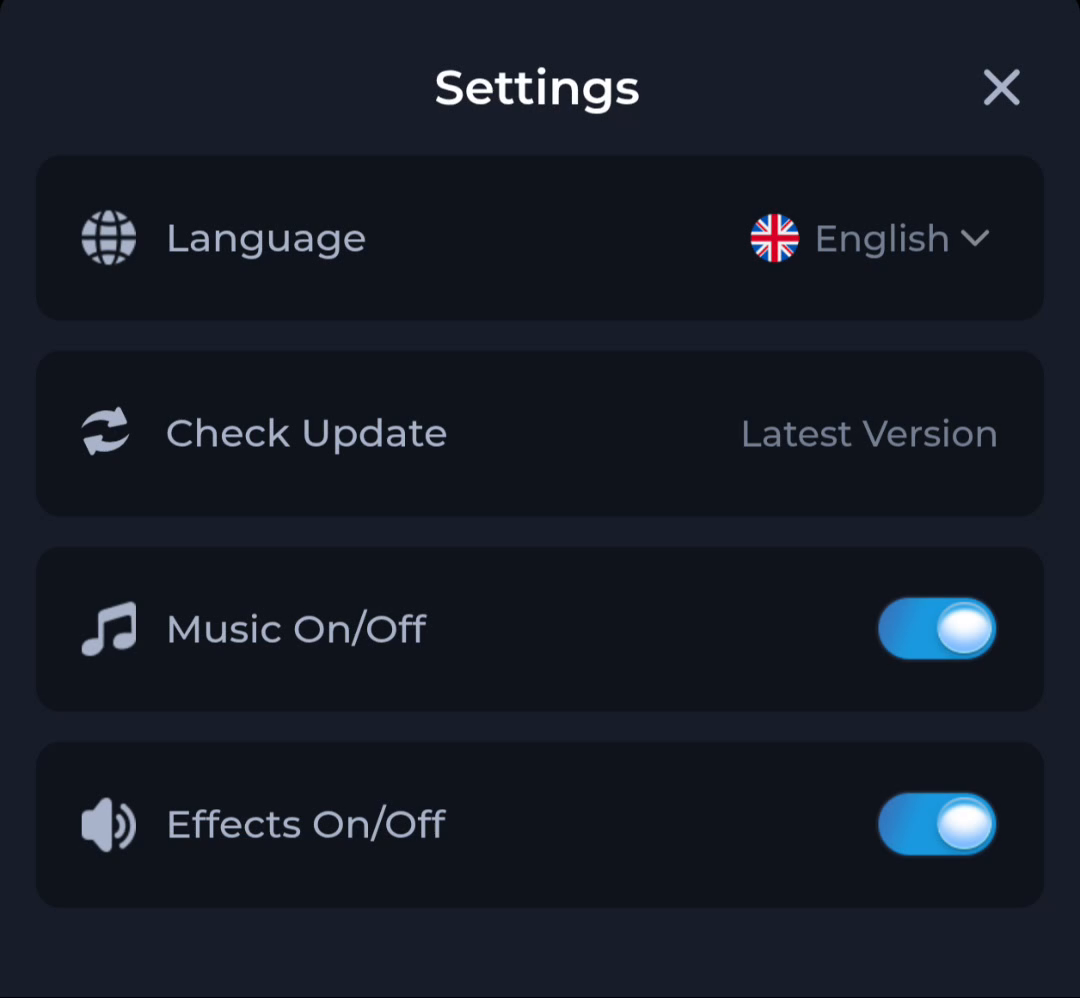
Check whether the current app opens and which version number is shown in its app information. Record the issue you expect an update to address. The Settings Check Update row can help you inspect status, but a status phrase is not a numbered release.
Compare before replacing
Read the new offer’s source and version. Android may reject an update for reasons including package or signing incompatibility; the exact message matters. A refusal does not mean removing the existing app is automatically the right next step.
Check the result without clearing data
If Android accepts the update, open COME and inspect the original issue, Settings and the expected account route. If it refuses the package, preserve the working installation while using the service’s current guidance. Avoid clearing data as a test.
A useful next step
Return to Download for the current entry and step sequence. Keep version comparison, installation acceptance and account access as three distinct checks.
Related: COME APK Transfer Interrupted: Resume from the Right Stage