 COME
COMECOME APK Transfer Interrupted: Resume from the Right Stage
An interrupted file transfer needs a browser and connection check before an installation check. Identify whether the interruption happened while saving the APK or after opening the installed app.
Use browser status for the file stage
Find the transfer in Downloads and read its state. If the browser offers a normal resume action, follow its instructions. If it reports a failed transfer, record the message and return to the current source before starting another copy.
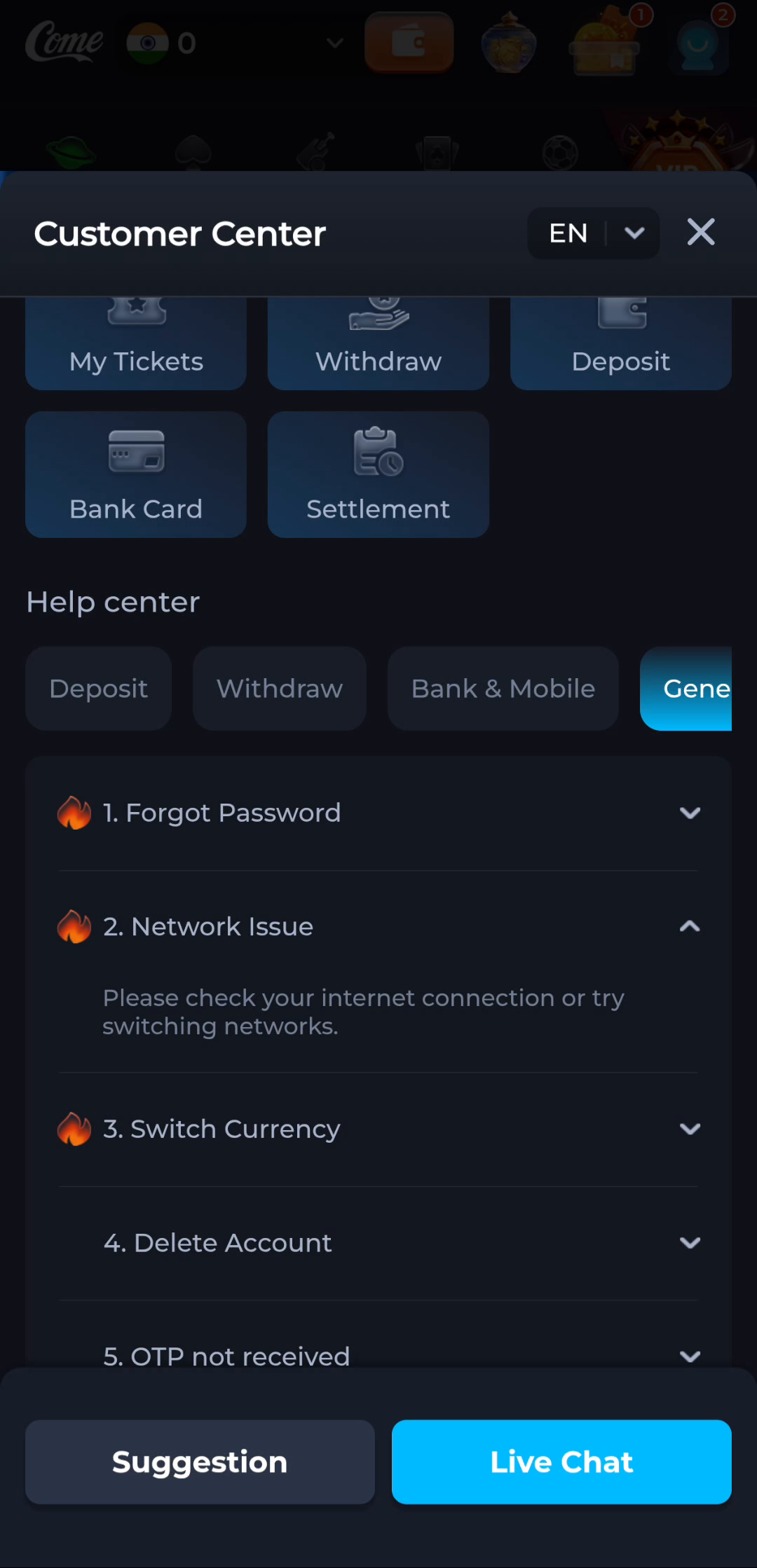
Compare connectivity
Try an ordinary page on the same network. If that also fails, resolve the device connection first. If COME is already installed and the error appears inside it, the Network Issue help shown here is relevant to that later app stage.
Continue only from a complete package
Do not open a partial file to test whether installation works. After one transfer completes, compare its details and read Android’s prompt. Multiple incomplete copies do not make the package more usable and can hide which attempt actually succeeded.
A useful next step
The download page brings the stages together. Use the network article only for the stage where the message appears, and preserve a working installed app.